Best Budget Studio Headphones Under 100: Budget Studio Headphones: 5 Myths That Ruin Your First Mix

You have $100. You need to hear the bass correctly. You open a search bar and immediately get hit with a wall of marketing nonsense about “studio-grade sound” and “crystal clarity.” Most of what you read is designed to sell you a product, not to help you make a record. Let’s fix that. We are going to look at the actual physics of listening, the specific models that survive club soundchecks, and why spending less might actually save your first album.

Myth 1: You Need “Flat” Frequency Response

Every guide tells you to buy the flattest headphones possible. This is a trap. Unless you are mastering in an anechoic chamber, a perfectly flat response curve is useless. You are not hearing sound in a vacuum; you are hearing it in a room with reflections, or in a noisy apartment with a refrigerator humming in the background.

The goal is translation, not perfection. You want headphones that reveal problems in your mix. A headphone that is slightly bright in the high-mids will force you to pull back harsh vocals. A headphone with a slight bump in the low-end will stop you from over-compensating on the bass guitar.

Take the Superlux HD681. It costs around $35. It is not flat. It has a spiky treble response that many audiophiles hate. But for a producer on a budget, that harshness is a tool. If your hi-hats are too loud, the HD681 screams at you. You will fix the problem before you export the track. That is the job of a monitoring tool.

Why “Fun” Headphones Fail

Consumer headphones like the Beats Studio3 or the Sony WH-1000XM5 are designed to make music sound good. They boost bass and scoop mids. If you mix on these, you will turn the bass down because it sounds too loud. Then you play the song in a car, and it sounds thin and weak. The Sony MDR-7506 ($99) has been the standard in broadcast and film for decades specifically because it does not flatter the sound. It reveals it.

Myth 2: Open-Back vs. Closed-Back Is a Dealbreaker
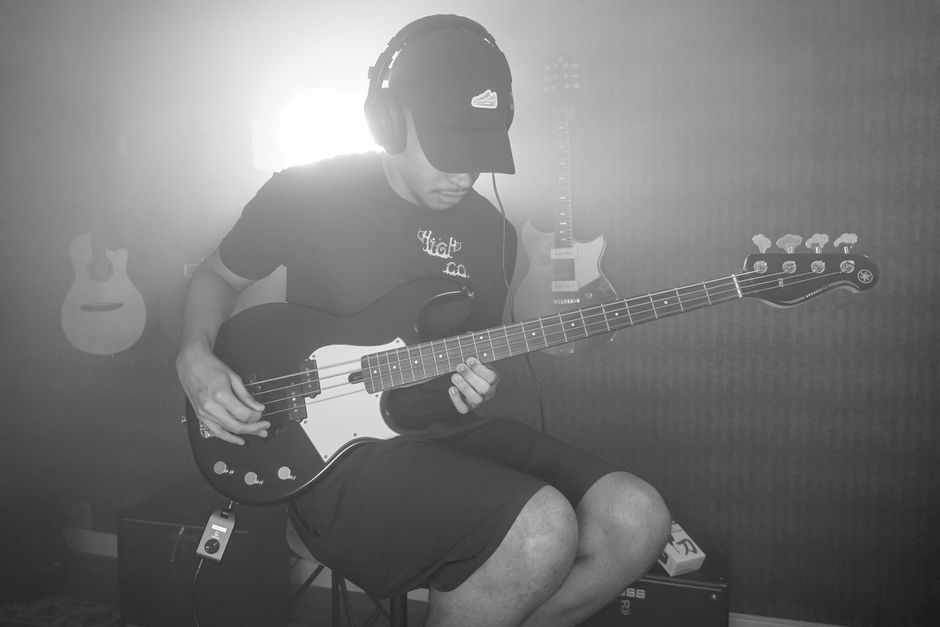
Musician plays electric bass guitar in studio, wearing headphones.

People agonize over this choice as if it is a legal decision. It is not. It is a practical one.

Here is the verdict: If you record vocals or instruments with a microphone, buy closed-back. If you only mix and never record, you can use open-back.

Open-back headphones like the Samson SR850 (Semi-Open, ~$49) provide a more natural soundstage. They sound less like sound is being injected directly into your skull. This helps with judging reverb and panning width. However, sound leaks out. If you are tracking a vocalist, the click track will bleed into the microphone. Closed-back headphones like the Audio-Technica ATH-M20x ($49) isolate the sound. They keep the metronome in your ears and out of the recording.

Do not overthink this. If you are unsure, buy closed-back. They are more versatile for a beginner because they work in every scenario.

Myth 3: More Money Equals Better Mixes

This is the most expensive lie in the music industry. A $1,500 pair of Audeze LCD-X headphones will not make your mixes better if your room is untreated and your ears are untrained. In fact, they might make them worse because you will trust them too much.

Your first year of production is about learning to listen. You need to learn what a good mix sounds like on your specific gear. You do this by referencing. Play a commercial track you love (like a song from the 2026 Grammy nominees) through your $50 headphones. Listen to where the kick drum sits. Listen to the vocal reverb. Then listen to your mix. The difference is your lesson.

A cheap headphone that you know intimately is worth more than an expensive headphone you do not understand. The Behringer BH470 is a $30 option that is surprisingly durable. It is not the last word in detail, but it is loud and reliable. If you learn its sound profile, you can mix on it.

Myth 4: You Need a Headphone Amplifier
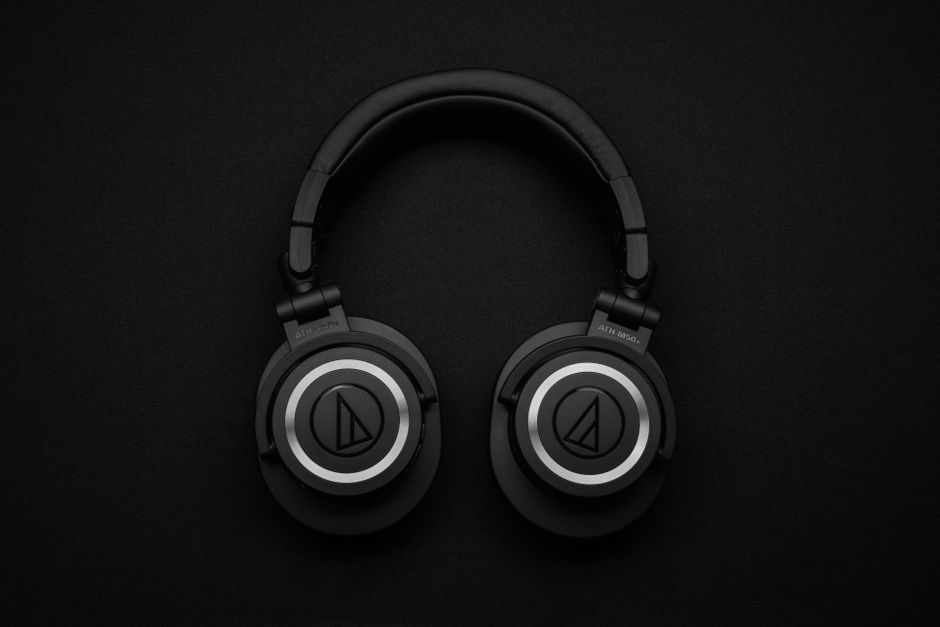
Close-up of black over-ear headphones on a black background, showcasing modern design.

Stop. You do not.

This myth persists because high-impedance headphones (like the 250-ohm version of the Beyerdynamic DT 770 Pro) require more power than a laptop headphone jack provides. But the budget market has moved on. Most sub-$100 headphones are designed to be driven by a phone or a standard audio interface.

The Audio-Technica ATH-M20x has an impedance of 47 ohms. The Sony MDR-7506 is 63 ohms. The Samson SR850 is 32 ohms. A standard Focusrite Scarlett 2i2 or even a MacBook Air headphone jack will drive all of these to deafening volumes without distortion.

Do not waste your budget on a dedicated headphone amp. Spend that money on acoustic treatment or better cables. A $50 amp plugged into a $50 headphone is just a $100 headphone with extra steps.

Myth 5: Wireless Is the Future

For studio work, wireless is the enemy. Bluetooth introduces latency. Latency is the delay between what you play and what you hear. Even the best codecs (like aptX Low Latency) introduce a delay of 30-40 milliseconds. That is enough to make a drum performance feel “off” and ruin a tight double-tracked vocal.

It is not just about timing. Wireless headphones compress the audio signal to transmit it. This compression changes the sound. You are not hearing the raw WAV file; you are hearing a processed version of it. You cannot make accurate EQ decisions based on a lossy signal.

Stick to a wire. It is cheaper, it is faster, and it is honest. The only reason to buy wireless headphones is if you are commuting, not producing.

The 2026 Budget Workflow: A Practical Setup
Elderly man with headphones browsing phone while sitting on a porch bench.

Here is the specific path I recommend for an aspiring producer with a strict $100 limit. This is based on the failure modes I see most often at gigs and in home studios.

Priority Product Price (2026) Why It Wins
Best Overall Sony MDR-7506 $99 Industry standard for 30 years. Reveals mid-range problems. Folds up for gig bags.
Best Budget Superlux HD681 $35 Semi-open, exposes harsh highs. Unbeatable value for learning.
Best Closed-Back Audio-Technica ATH-M20x $49 Durable build, good isolation for tracking vocals.
Best for Comfort Samson SR850 $49 Velour pads, light clamp force, good for long sessions.

Notice a pattern? None of these are new. They are not trendy. They are tools that work. The Sony MDR-7506 has been used on more recordings than any other headphone on this list. The Superlux HD681 is a clone of a classic AKG design that has been tweaked to be brighter. These are known quantities.

When you buy a pair, do not just plug them in and start making beats. Spend a week listening to your favorite albums. Listen to the low-end on a Dua Lipa track. Listen to the vocal sibilance on a Phoebe Bridgers record. Learn what “good” sounds like on your new gear.

Then, and only then, start mixing your own work.

The category is shifting. We are seeing more manufacturers push “studio” branding on consumer products to cash in on the home-production boom. The truth is that the technology for dynamic drivers has not changed much in decades. A well-built $50 headphone from 2010 is often better than a poorly built $100 headphone from 2026. Focus on the driver size, the impedance, and the build quality. Ignore the RGB lights and the “AI-enhanced” sound profiles.

Your ears are the most important piece of gear you own. Train them on affordable, reliable tools, and you will be ready to upgrade when you actually know what you are looking for.
Affordable Midi Keyboards For Beginners: 5 MIDI Controllers That Beat Buying a Synth

Most beginner producers waste $300 on a hardware synth that ends up collecting dust. A $120 MIDI keyboard gives you access to thousands of sounds through free software. That’s the entire argument for starting with MIDI. You don’t need a physical instrument to make music in 2026. You need a controller that talks to your computer.

I’ve watched too many friends buy a Korg Volca or a used MicroKorg, play with it for two weeks, then realize they can’t record anything properly without an audio interface anyway. The MIDI route skips that frustration entirely. Here are five affordable controllers that actually solve the beginner problem.

What Actually Matters When Buying Your First MIDI Keyboard

Ignore the marketing. Three things matter: key feel, software bundle, and whether the knobs actually map to your DAW without a 40-minute setup video. Everything else is noise.

Key feel is subjective but there’s a floor. The cheapest controllers use springy, toy-like keys that make playing feel like typing on a broken laptop. You want at least semi-weighted action or, if you’re going synth-action, keys with enough resistance to not feel like pressing air. The Arturia KeyLab Essential and Novation Launchkey both clear this bar. The $60 no-name Amazon controllers do not.

Software bundle is where beginners get the most value. A controller bundled with Ableton Live Lite and a decent synth plugin saves you $200 immediately. Arturia includes Analog Lab Intro which gives you 500 presets from their synth collection. Novation bundles Ableton Live Lite plus a few instruments. Native Instruments includes Komplete Start. These bundles matter more than the hardware specs at this price point.

DAW integration separates the usable from the frustrating. The Novation Launchkey series was designed for Ableton Live. The Arturia KeyLab Essential works immediately with Arturia’s own software and maps reasonably to Logic and Ableton. Akai’s MPK Mini series has good pads but the mapping requires more manual setup in some DAWs. If you use Ableton, buy Novation. If you use Logic or want the best software bundle, buy Arturia.

One thing nobody tells you: 25 keys is enough for most beginners. You’re not playing Rachmaninoff. You’re triggering chords, basslines, and melodies one hand at a time. Full-size 49-key controllers are nice but take up desk space and cost more. The only reason to go bigger is if you already play piano and want two-handed range.

Comparison Table: The Five Controllers Worth Your Money

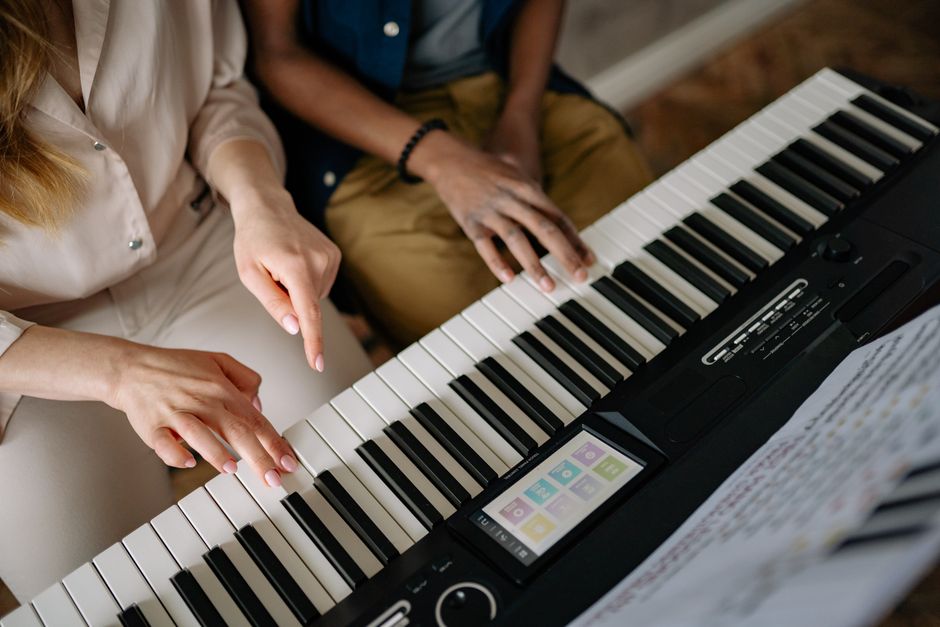
Close-up of two pairs of hands learning to play on a piano keyboard during a music lesson.
Controller Price Keys Best For Software Included
Arturia KeyLab Essential 49 $149 49 semi-weighted Logic/Arturia users wanting the best bundle Analog Lab Intro (500+ presets), Ableton Live Lite, UVI Model D
Novation Launchkey 25 MK4 $129 25 synth-action Ableton Live users Ableton Live Lite, GForce synths
Akai MPK Mini Plus $139 37 synth-action Beatmakers who want pads and keys MPC Beats, Air Music Hybrid
Native Instruments Komplete Kontrol A25 $119 25 semi-weighted NI ecosystem users Komplete Start, Maschine Essentials
Arturia MiniLab 3 $109 25 mini keys Portable setup, absolute beginners Analog Lab Intro, Ableton Live Lite, UVI Model D

My pick for most beginners: the Arturia KeyLab Essential 49. The software bundle alone justifies the $149 price tag. Analog Lab Intro gives you usable sounds from day one without buying anything else. The semi-weighted keys feel substantial enough that you won’t hate practicing. If you’re tight on desk space, the MiniLab 3 at $109 gets you the same software in a smaller footprint.

The Akai MPK Mini Plus is the only one here with a proper arpeggiator and chord mode built into the hardware. If you make hip-hop or lo-fi beats, those pads get used constantly. The Novation Launchkey 25 MK4 is the obvious choice if you’re committed to Ableton.

The Mistake Everyone Makes: Buying Too Much Controller

Here’s the failure mode I see constantly. A beginner watches a YouTube video of someone with a $600 Native Instruments S61, thinks they need that to sound good, and either overspends or gives up before starting. You don’t need motorized faders. You don’t need aftertouch. You don’t need 61 keys.

The truth: your first six months of production are about learning the software. The MIDI keyboard is just an input device. It’s a fancy mouse for notes. The sounds come from your DAW and plugins. A $109 controller with good software will teach you more than a $400 controller with no software.

Another mistake: buying a controller with no knobs or faders. You want at least a few assignable controls. When you’re tweaking a filter cutoff or drawing automation, having physical knobs beats clicking with a mouse every time. The Arturia MiniLab 3 has eight knobs and four faders. The Akai MPK Mini Plus has eight knobs. Don’t buy something with zero controls.

And don’t buy used MIDI controllers from before 2018. The software bundles have expired, the USB ports are often loose, and the integration with current DAWs is spotty. The used market for controllers under $150 isn’t worth the risk. Buy new, register the software, get the warranty.

When NOT to Buy a MIDI Keyboard

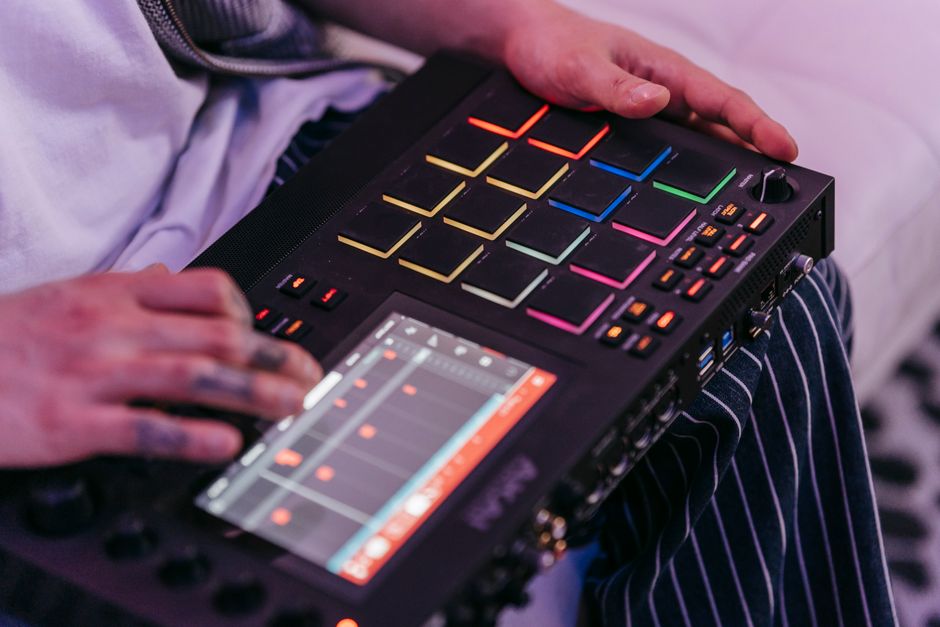
Hands operating a music sequencer for digital sound and beat creation.

If you already play piano and want to practice piano, buy a digital piano. A MIDI controller with synth-action keys will ruin your technique. The Yamaha P-45 ($449) or Roland FP-10 ($499) have weighted hammer-action keys that feel like a real piano. They also work as MIDI controllers when you need them. Different tool entirely.

If you’re a guitarist who just wants to add some synth textures, consider a MIDI guitar pickup or just drawing notes in your DAW. Spending $130 on a keyboard you’ll use twice a month isn’t smart. The Fishman TriplePlay or even the free MIDI tools in GarageBand can handle basic synth parts.

If you’re making sample-based hip-hop exclusively, the Akai MPD218 pad controller ($99) might serve you better than a keyboard. Pads are more natural for finger drumming. Keys are for melodies and chords. Know which one you actually need.

The Bottom Line

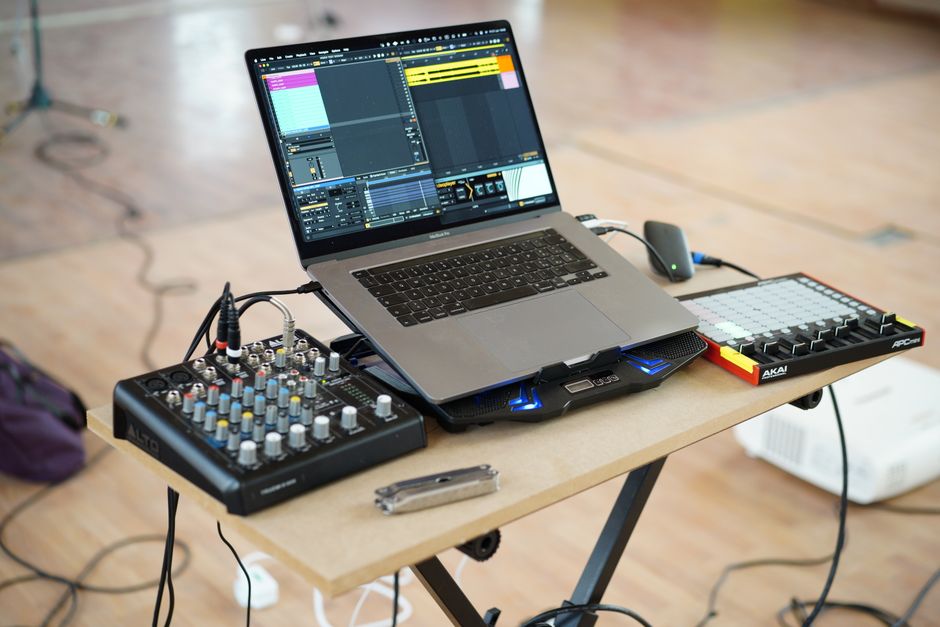
A home music production setup with a laptop, mixer, and controller on a desk.

Buy the Arturia KeyLab Essential 49 for $149, install Analog Lab Intro, and spend the next three months learning your DAW instead of shopping for gear. The controller is not the bottleneck. Your time in the software is.

Every hour you spend comparing MIDI keyboards is an hour you could have spent making a beat. The differences between these five controllers are minor. The difference between having one and not having one is everything.

Scarlett 2I2 Vs Behringer Umc202Hd: Budget Audio Interfaces: Scarlett 2i2 or Behringer UMC202HD

The Focusrite Scarlett 2i2 costs more. The Behringer UMC202HD costs less. For most home studios in 2026, the Behringer is the smarter buy. But not for everyone. Here’s the honest breakdown.

Both interfaces do the same fundamental job: convert an analog microphone or guitar signal into digital audio your computer can record. Both have two inputs. Both run on USB. Both ship with basic recording software. The differences come down to preamp quality, build feel, driver stability, and about $70 in price.

I’ve used both units extensively. The Behringer sits on my desk right now. The Scarlett went back after three weeks. That’s not because the Scarlett is bad. It’s because the Behringer did the same job for less money, and the Scarlett’s advantages didn’t matter for my workflow.

What Actually Matters in a Budget Interface

You’re not buying a mixing console. You’re buying a box that needs to do three things reliably: capture clean signal, play back without crackling, and not get in your way. Everything else is marketing.

The first principle here is simple. An audio interface is a translator. Your microphone speaks analog. Your computer speaks digital. The interface converts one language to the other. If the translation is accurate and quiet, you’re done. If it adds noise or drops words, you’ll hear it in every recording you ever make.

Preamp Noise: The Number That Actually Matters

The Focusrite Scarlett 2i2 (3rd Gen and the newer 4th Gen) uses preamps with an Equivalent Input Noise (EIN) of around -128 dBu. The Behringer UMC202HD uses MIDAS-designed preamps rated at -129 dBu. That’s a one-decibel difference. You cannot hear it. Anyone who tells you they can hear the difference between -128 and -129 dBu on a $150 interface is lying or selling something.

What you can hear is gain range. The Behringer gives you 60 dB of gain. The Scarlett gives you 56 dB on the 3rd Gen, 69 dB on the 4th Gen. If you’re using a Shure SM7B — a notoriously gain-hungry dynamic mic — the 4th Gen Scarlett handles it better without a Cloudlifter. The Behringer will get you there, but you’ll be near the top of the gain knob where the preamp gets slightly noisier.

Driver Stability on Windows and Mac

This is where Focusrite has historically won. The Scarlett line is class-compliant on Mac — plug it in, it works. On Windows, Focusrite’s ASIO drivers are mature and stable. The Behringer UMC202HD also works class-compliant on Mac. On Windows, it relies on ASIO4ALL or Behringer’s own driver, which is functional but less polished.

For 2026, both units work fine on Windows 11 and macOS Sonoma. But if driver stability is your top concern — if you’re recording clients and cannot afford a dropout mid-take — the Scarlett’s driver edge is real. Not huge. But real.

Spec Comparison Table

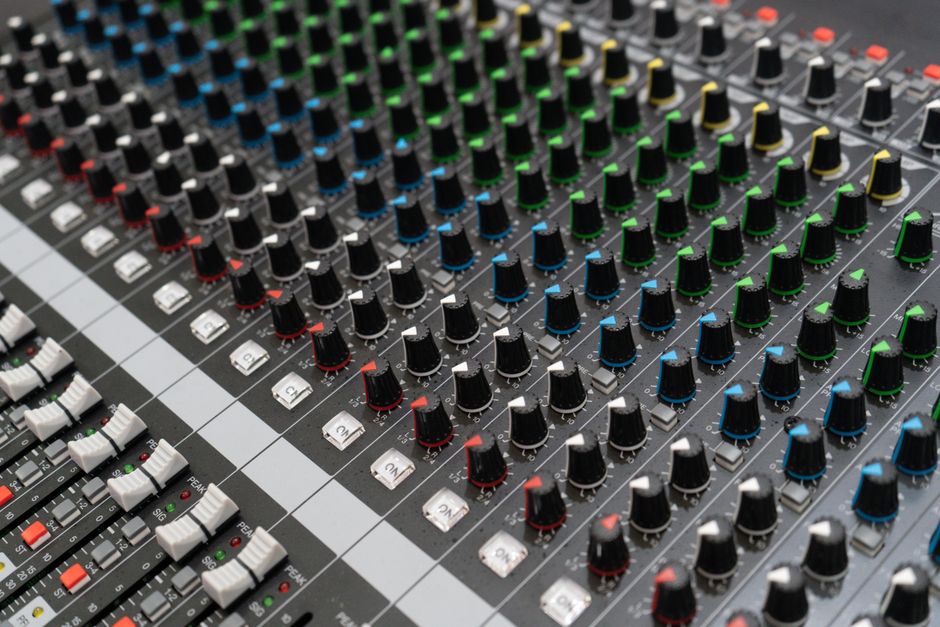
Detailed image of an audio mixer with colorful knobs and controls in a studio setting.

Here’s the data side by side. Numbers don’t lie, but they also don’t tell the whole story.

Spec Focusrite Scarlett 2i2 (4th Gen) Behringer UMC202HD
Price (2026) $179 $99
Preamps 2 (Focusrite redesigned) 2 (MIDAS-designed)
Max Gain 69 dB 60 dB
EIN -128 dBu -129 dBu
Phantom Power +48V, switchable +48V, switchable
Sample Rate Up to 192 kHz / 24-bit Up to 192 kHz / 24-bit
Build Material Aluminum chassis Metal chassis, plastic knobs
Headphone Output Independent volume control Independent volume control
Included Software Ableton Live Lite, Focusrite Control Tracktion Waveform OEM

Read that table carefully. The Behringer matches or beats the Scarlett on paper in most categories. The Scarlett wins on gain range and build feel. The software bundle is a wash — Ableton Live Lite is more popular, but Tracktion Waveform is genuinely good and underrated.

Where People Get This Wrong

The biggest mistake I see in budget interface discussions is obsessing over specs that don’t matter while ignoring the one thing that does: gain staging.

You could buy a $500 interface and still get noisy recordings if you don’t set your levels correctly. You could buy the $99 Behringer and get clean, professional results if you do. The interface is rarely the bottleneck. The room, the mic placement, the performance — those matter more.

Another common failure: buying the Scarlett because a YouTuber said it’s “the industry standard.” It is the best-selling interface in the world. That doesn’t mean it’s the best for you. It means Focusrite has excellent marketing and a long track record. The Behringer UMC202HD has sold millions of units too. It’s just less glamorous.

When to Buy the Scarlett 2i2

  • You use a Shure SM7B or other low-output dynamic mic and don’t want to buy a Cloudlifter or FetHead.
  • You record clients and need the most stable Windows drivers possible.
  • You care about how gear feels. The Scarlett’s aluminum chassis and knobs feel premium. The Behringer’s plastic knobs feel cheap.
  • You want the 4th Gen’s Air mode, which adds a high-frequency boost that can help dull mics.

When to Buy the Behringer UMC202HD

  • You’re on a tight budget and want to spend the $80 savings on a better microphone or acoustic treatment.
  • You use condenser mics, which don’t need extreme gain.
  • You’re on Mac, where driver differences barely matter.
  • You want a second interface for travel or a backup unit.

What About the Alternatives?

Musician holding audio equipment next to a colorful wall in a city street.

The market isn’t just these two. If neither feels right, consider the Audient iD4 MKII ($199) — it has a JFET instrument input that sounds noticeably better for direct guitar recording than either the Scarlett or Behringer. Or the Universal Audio Volt 2 ($189), which includes a built-in compressor and vintage preamp emulation. Or the Motu M2 ($199), which has the best metering display in the budget class and excellent low-latency performance.

For podcasters who need four inputs, the Behringer UMC404HD ($149) is the value king. For guitarists who want amp simulation built in, the IK Multimedia AXE I/O ($249) is worth a look. But if you’re deciding strictly between the Scarlett 2i2 and the UMC202HD, the choice comes down to this: do you need the extra gain and premium feel, or do you want to save $80 and get 95% of the same performance?

My answer: buy the Behringer. Spend the difference on a used Shure SM57 and some acoustic panels. That combination will improve your recordings more than any interface upgrade ever will.

The Bottom Line

Close-up view of a professional audio mixing console with faders and dials.

The budget audio interface category has matured to the point where the cheap options are genuinely good. The Behringer UMC202HD at $99 is the best value in the category. The Scarlett 2i2 at $179 is the safer, more polished choice. Both will serve you well.

What excites me about the next few years isn’t better preamps — it’s better integration. Interfaces that work seamlessly with mobile devices. Interfaces with built-in DSP that doesn’t require a degree to operate. The gap between budget and pro gear keeps shrinking. The Behringer and Scarlett are both proof of that. Pick one, start recording, and stop worrying about the gear.

Midi Keyboard Setup Beginners: Your MIDI Keyboard Won’t Fix a Bad Song: A Beginner’s Setup for 2026

You bought a MIDI keyboard because someone on YouTube made it look easy. The box arrived. You plugged it into your laptop. Nothing happened. Or worse — it made a sound once, then went silent, and now you’re three hours deep in a forum thread from 2019 about driver conflicts.

This is not a gear problem. It’s a routing problem. And the fix takes about twenty minutes once you understand what the keyboard actually does.

A MIDI controller sends instructions, not audio. It says “note on, velocity 97, note off” — nothing else. Your computer turns those instructions into sound through a software instrument. If you skip that step, the keyboard is just an expensive plastic slab. This guide covers the setup path that actually works in 2026, using gear that doesn’t require a degree in audio engineering.

The Three-Part Chain: Keyboard, Driver, DAW

Every MIDI setup failure comes down to one broken link in a three-part chain. The keyboard sends data. The operating system receives it. The DAW interprets it. If any link fails, you get silence.

What the keyboard actually sends

MIDI data is tiny. A note-on message is three bytes. Your keyboard doesn’t need a powerful computer to work — a 2015 laptop handles it fine. What matters is whether the keyboard is class-compliant. Class-compliant means the operating system recognizes it without installing drivers. The Arturia KeyLab Essential 49 ($249) is class-compliant. So is the Novation Launchkey 37 ($199). The Akai MPK Mini Plus ($169) works class-compliant too. If your keyboard needs a driver download, do that first — before opening any music software.

The DAW is not optional

You need a DAW — a digital audio workstation — to hear anything. Free options in 2026 include GarageBand (Mac only), Cakewalk by BandLab (Windows), and Tracktion Waveform Free (both platforms). Paid entry points: Ableton Live Intro ($99), Logic Pro ($199, Mac only), FL Studio Fruity Edition ($99). The DAW is where you select a virtual instrument — a piano, a synth, a drum kit — and route the MIDI input to it.

The setup sequence that avoids 90% of problems

  1. Plug in the keyboard with the USB cable it came with. Not a random cable from a drawer — some cheap USB cables are charge-only and don’t carry data.
  2. Open your DAW. Go to Settings > MIDI Devices (or Preferences > MIDI).
  3. Enable the keyboard as an input device. Look for a checkbox or an “Enable” button next to the keyboard’s name.
  4. Create a new track. Select a virtual instrument from the DAW’s instrument list.
  5. Arm the track for recording (usually a red button on the track).
  6. Play a key. You should hear sound.

If you hear nothing at step 6, the problem is almost always step 3 or step 5. Not the keyboard.

What Actually Goes Wrong: The Failure Modes

Detailed close-up of piano keys on an electronic keyboard. Perfect for music-related content.

Here’s what nobody tells you before you buy.

Problem What it looks like The actual fix
Charge-only USB cable Keyboard lights up but DAW doesn’t see it Use the cable from the box, or buy a data-rated USB cable ($8–12)
Wrong MIDI channel Some keys work, others don’t, or drum pads trigger wrong sounds Set keyboard to MIDI channel 1, match it in DAW track settings
No virtual instrument loaded DAW sees the keyboard, track is armed, still no sound Load a software instrument on the track — the DAW doesn’t make sound by itself
Driver conflict Keyboard works, then stops after a system update Uninstall old drivers, download current version from manufacturer site, restart
Latency (delay between key press and sound) You play a note, sound comes 100–300ms later Lower buffer size in DAW audio settings (64–128 samples), or install ASIO drivers on Windows

The charge-only cable issue is the most common beginner failure I see. A cable that charges your phone will not necessarily transmit MIDI data. If your keyboard powers on but the DAW doesn’t list it, try a different cable before you return the keyboard.

Latency deserves more attention. On Windows, the default audio drivers are slow. You need ASIO4ALL (free) or the ASIO driver from your audio interface. Set the buffer to 128 samples or lower. At 256 samples, the delay becomes noticeable. At 512, it’s unplayable.

Which Keyboard to Buy in 2026 (And When Not to Buy One)

For a first controller, the Novation Launchkey 37 is the best pick right now. It costs $199, has 37 full-size keys, and includes Ableton Live Lite. The integration with Ableton is deeper than anything Arturia or Akai offers at this price. If you don’t know which DAW you’ll use, the Launchkey works fine with any of them, but it shines in Ableton.

The Akai MPK Mini Plus ($169) is the right choice if desk space is tight. It has 37 mini keys, which feel cramped for two-handed playing but work fine for bass lines, drum programming, and chord stabs. The joystick for pitch and modulation is more fun than wheels.

The Arturia KeyLab Essential 49 ($249) makes sense if you’re leaning toward Arturia’s Analog Lab software — it comes with a huge preset library that sounds genuinely good out of the box. The keybed feels slightly better than the Novation.

Skip anything with fewer than 25 keys. Skip anything without pitch and mod controls. Skip anything that requires proprietary drivers unless you’re on Mac. And if you already have a digital piano with USB MIDI out, you don’t need to buy a controller at all — that piano will work as a MIDI keyboard in any DAW.

Setting Up Your First Playable Session

A vibrant close-up view of a computer keyboard illuminated by red and blue light, emphasizing technology themes.

You’ve got the keyboard connected. The DAW sees it. Now make something that sounds like music, not a keyboard demo.

Start with a piano sound. Not a synth, not a pad — a plain piano. Pianos have a fast attack and a clear decay, which makes it obvious when your MIDI routing is working and when latency is creeping in. In GarageBand, that’s the “Grand Piano” instrument. In Ableton, it’s “Grand Piano” under Instruments. In FL Studio, it’s “FL Keys.”

Record four bars of a simple chord progression. C major, A minor, F major, G major. One chord per bar. Don’t worry about timing — you can quantize later. The point is to confirm that notes are being recorded and played back correctly.

Then switch to a drum kit. Most beginner keyboards have drum pads. Tap out a basic kick-snare pattern. If the pads trigger the wrong drums, check the pad mapping — many controllers let you reassign pad notes in the included software editor. On the Launchkey, that’s Novation Components. On the MPK Mini Plus, it’s Akai MPC Beats.

The goal of this first session is not a finished song. It’s to verify every link in the chain works. Once you’ve recorded MIDI, played it back, and edited a note or two, you’re past the setup phase. Everything after this is just learning the software.

What Nobody Tells You About MIDI Controllers

A sleek, modern office setup with a gaming PC, curved monitor, and accessories, ideal for tech enthusiasts.

Your keyboard will not make you a better musician. It won’t write melodies for you. It won’t fix a weak chord progression. What it does is remove friction between an idea and a recording. That’s the whole value proposition.

If you’re a guitarist who wants to add synth parts to demos, a 25-key controller is enough. If you’re a pianist who wants to record full arrangements, get at least 49 keys. If you’re a beatmaker, the pads matter more than the keys — the Akai MPD218 ($119) has no keyboard at all, just 16 pads, and it’s better for drum programming than any keyboard controller at double the price.

One more thing: MIDI keyboards don’t make sound without a computer. If you want standalone sounds without a laptop, you’re looking for a synthesizer, not a controller. The Korg Volca Keys ($169) or Arturia MicroFreak ($349) are actual synthesizers with built-in sounds. Different product category entirely.

You bought the keyboard because you wanted to make music. The setup takes twenty minutes. The learning curve after that is the real work — and no amount of gear shopping will skip it.